

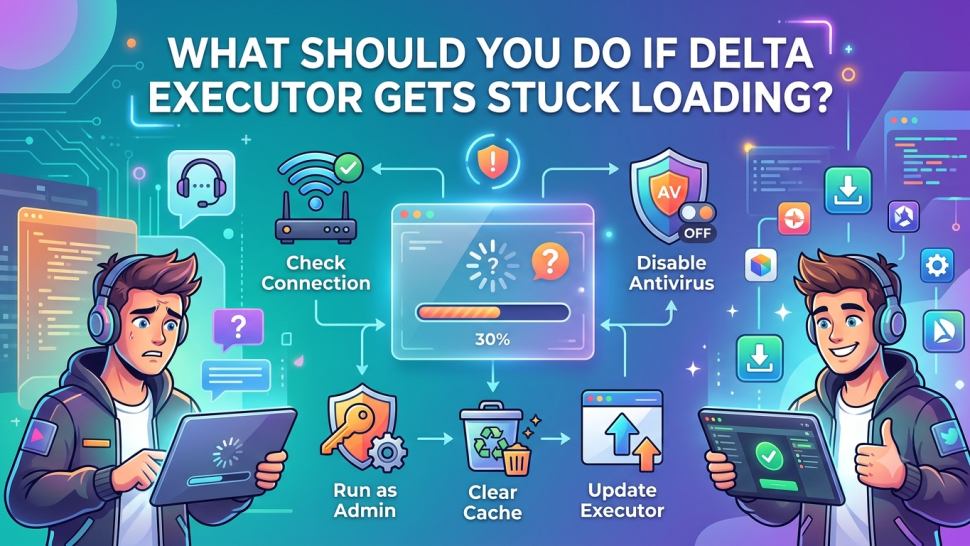

An application that gets stuck on its loading screen can be frustrating. You may wait several minutes, restart the app, and still see no progress. This problem can happen for different reasons, including a weak internet connection, limited device storage, outdated software, or an application error. Finding the actual cause is the first step toward solving it.
When using a third-party tool such as Delta Executor, it is important to check both the device and the application. A loading problem does not always mean that the software is broken. Sometimes, a simple device issue is responsible. However, users should avoid risky fixes that involve unknown downloads or disabling security features.
1. Check Your Internet Connection
A slow or unstable internet connection can prevent an application from completing its loading process. This may happen when Wi-Fi signals are weak or mobile data keeps disconnecting.
Try these basic checks:
- Open a trusted website to see whether the internet is working.
- Move closer to your Wi-Fi router.
- Switch between Wi-Fi and mobile data.
- Restart your router if other devices also have connection problems.
- If the connection is stable but the app still does not load, continue checking other possible causes.
2. Restart Your Device
Temporary system problems can affect how applications start. Too many background processes may also use memory and slow down the device.
Close unused applications and restart your phone, tablet, or computer. After the device turns back on, check whether the loading issue continues.
A restart can clear temporary system problems, but it cannot fix unsupported software or a damaged application file.
3. Check Available Storage and Memory
Applications need enough free storage and memory to run properly. When a device is almost full, it may struggle to manage temporary files or complete normal tasks.
Open your device settings and review the storage section. Remove unnecessary files, delete apps you no longer use, and clear temporary data through trusted system options.
Also, close background applications that you do not need. Avoid unknown cleaner apps because they may request unnecessary permissions or make misleading performance claims.
4. Review Software and Application Compatibility
An outdated operating system may cause problems with newer applications. Check your device settings for official software updates and review whether the application supports your device type and system version.
For example, users searching for a Delta iOS download should understand that iOS applications follow Apple's distribution and security requirements. An iOS-related file name does not prove that a download is genuine, supported, or safe.
Do not install unknown configuration profiles or certificates to force an application to load. Keep your device's built-in security protections active.
5. Check Whether the Problem Is Temporary
Sometimes, an application may fail to load because of a temporary service problem or a software issue. Repeatedly opening and closing it may not help.
Wait a little before trying again. If reliable support information is available, check whether the provider has reported a known problem. Avoid unofficial websites that promise instant fixes through modified files.
You should also consider whether the issue started after a recent system or application update. This detail can help identify a possible compatibility problem.
6. Avoid Risky Troubleshooting Methods
Some websites recommend disabling security settings, installing modified packages, or granting broad permissions. These steps can put personal information and device security at risk.
Keep these precautions in mind:
- Do not download files from unfamiliar websites.
- Never share your Roblox password or verification codes.
- Do not disable important security features.
- Avoid applications that request permissions unrelated to their purpose.
- Do not assume that a file is safe because it has positive comments online.
If an application continues to fail, removing it through normal device settings may be safer than trying unverified fixes.
7. Consider a Supported Alternative
If the loading problem continues after basic checks, the application may not support your device or current software version. Do not force an installation.
For Roblox development and scripting practice, Roblox Studio provides an official environment for creating experiences and learning Luau.
Conclusion
When Delta Executor gets stuck loading, start by checking your internet connection, restarting your device, and reviewing available storage and software compatibility. Also consider temporary service issues and avoid unsafe downloads or security changes. If the problem continues, the application may not support your device. Choosing a supported tool is a safer option than forcing software to run.



Share the News